
Every WPF DataGrid project starts the same way. You create a model, bind a collection, and columns appear automatically. Then the requirements arrive: group rows by department, filter on the fly, let users edit cells and have changes persist. Suddenly, the simple binding isn’t enough.
This guide walks through four wpf datagrid binding patterns, from the basics to production-ready scenarios. Each example comes from a working demo project you can download and run today. We’ll use Xceed DataGrid for WPF because its DataGridCollectionView gives you grouping, sorting, and filtering without writing a custom ICollectionView from scratch.
What You Need Before Starting
Install the NuGet package into any .NET 10 (or later) WPF project:
<PackageReference Include="Xceed.Products.Wpf.DataGrid.Full"
                  Version="7.3.26166.7869" />
Then add the Xceed XAML namespace to your window:
xmlns:xcdg="http://schemas.xceed.com/wpf/xaml/datagrid"That’s it. No manual DLL references, no license file to drop in a folder. During the 45-day trial you don’t even need a key.
Pattern 1: Bind an ObservableCollection
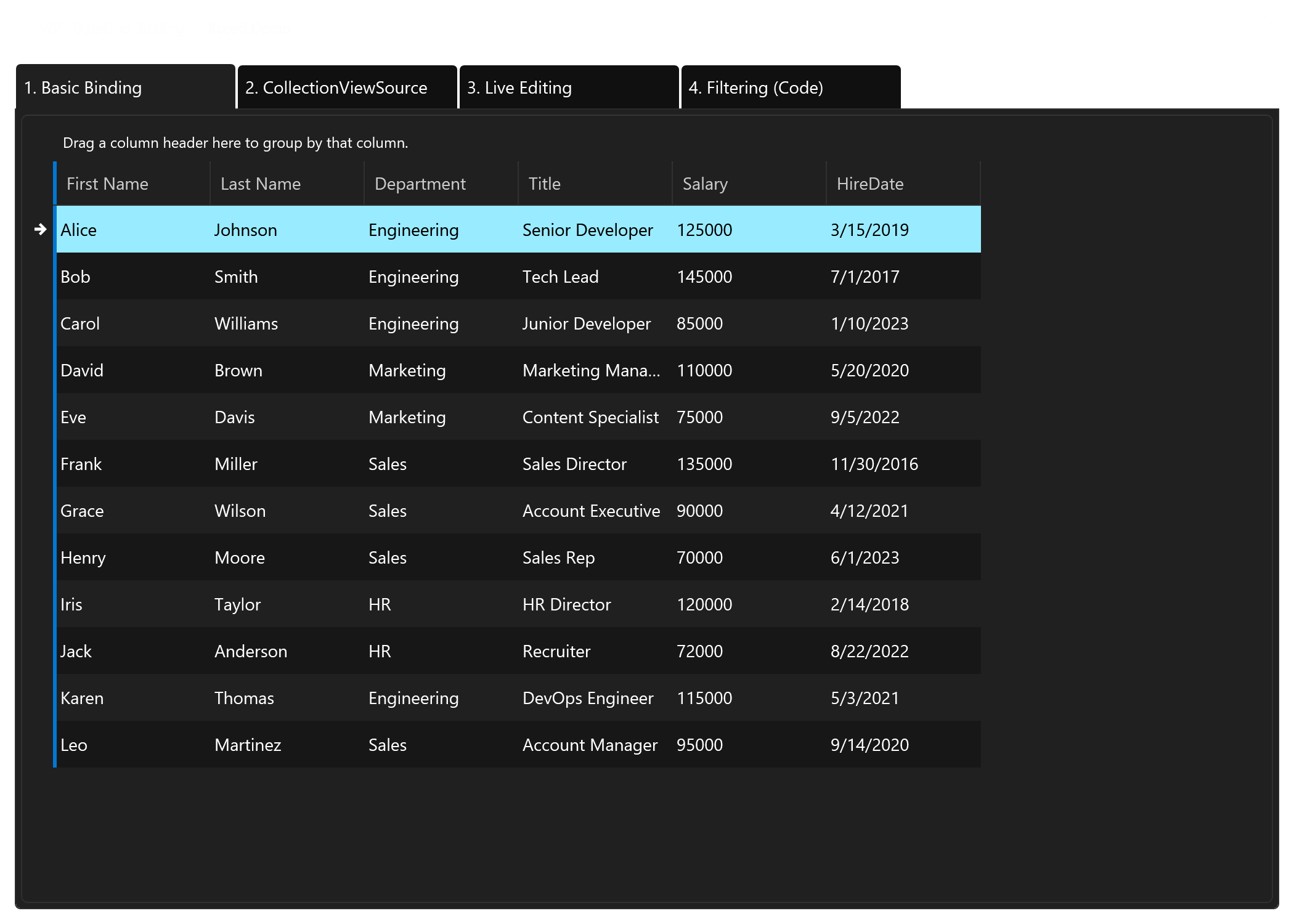
The most common wpf datagrid example starts here. You expose a collection from your window or view model, and the DataGridControl picks up the properties as columns automatically.
The Model
public class Employee : INotifyPropertyChanged
{
    private string _firstName = string.Empty;
    private string _department = string.Empty;
    private decimal _salary;

    public string FirstName
    {
        get => _firstName;
        set { _firstName = value; OnPropertyChanged(nameof(FirstName)); }
    }

    public string Department
    {
        get => _department;
        set { _department = value; OnPropertyChanged(nameof(Department)); }
    }

    public decimal Salary
    {
        get => _salary;
        set { _salary = value; OnPropertyChanged(nameof(Salary)); }
    }

    public event PropertyChangedEventHandler? PropertyChanged;
    protected void OnPropertyChanged(string name) =>
        PropertyChanged?.Invoke(this, new PropertyChangedEventArgs(name));
}
Implementing INotifyPropertyChanged matters because the WPF DataGrid needs property-change notifications to update cells when your data changes. Without it, edits won’t reflect in the UI.
The XAML
<xcdg:DataGridControl ItemsSource="{Binding Employees}">
    <xcdg:DataGridControl.View>
        <xcdg:TableflowView>
            <xcdg:TableflowView.Theme>
                <tp5:Windows10Theme />
            </xcdg:TableflowView.Theme>
        </xcdg:TableflowView>
    </xcdg:DataGridControl.View>
    <xcdg:DataGridControl.Columns>
        <xcdg:Column FieldName="FirstName" Title="First Name" />
        <xcdg:Column FieldName="LastName" Title="Last Name" />
        <xcdg:Column FieldName="Department" Title="Department" />
        <xcdg:Column FieldName="Title" Title="Title" />
        <xcdg:Column FieldName="Salary" Title="Salary" />
    </xcdg:DataGridControl.Columns>
</xcdg:DataGridControl>
Notice that Xceed uses DataGridControl instead of the built-in DataGrid. The ItemsSource binding works identically, but you get TableflowView with smooth scrolling and a theme system out of the box. If you skip the Columns definition entirely, the grid auto-generates columns from your model properties — useful for quick prototyping.
Pattern 2: Group and Sort with DataGridCollectionViewSource
Raw ObservableCollection binding falls short the moment you need grouping or sorting baked into the view. The built-in WPF approach requires CollectionViewSource plus custom GroupStyle templates — a lot of XAML for a common requirement. Xceed’s DataGridCollectionViewSource handles this declaratively.
The XAML
<Window.Resources>
    <xcdg:DataGridCollectionViewSource x:Key="GroupedEmployees"
        Source="{Binding Employees}">
        <xcdg:DataGridCollectionViewSource.GroupDescriptions>
            <xcdg:DataGridGroupDescription PropertyName="Department" />
        </xcdg:DataGridCollectionViewSource.GroupDescriptions>
        <xcdg:DataGridCollectionViewSource.SortDescriptions>
            <scm:SortDescription PropertyName="LastName"
                                 Direction="Ascending" />
        </xcdg:DataGridCollectionViewSource.SortDescriptions>
    </xcdg:DataGridCollectionViewSource>
</Window.Resources>

<xcdg:DataGridControl
    ItemsSource="{Binding Source={StaticResource GroupedEmployees}}">
    <xcdg:DataGridControl.View>
        <xcdg:TableflowView IsAlternatingRowStyleEnabled="True">
            <xcdg:TableflowView.Theme>
                <tp5:Windows10Theme />
            </xcdg:TableflowView.Theme>
        </xcdg:TableflowView>
    </xcdg:DataGridControl.View>
</xcdg:DataGridControl>
Add the scm namespace for SortDescription: xmlns:scm=”clr-namespace:System.ComponentModel;assembly=WindowsBase”.
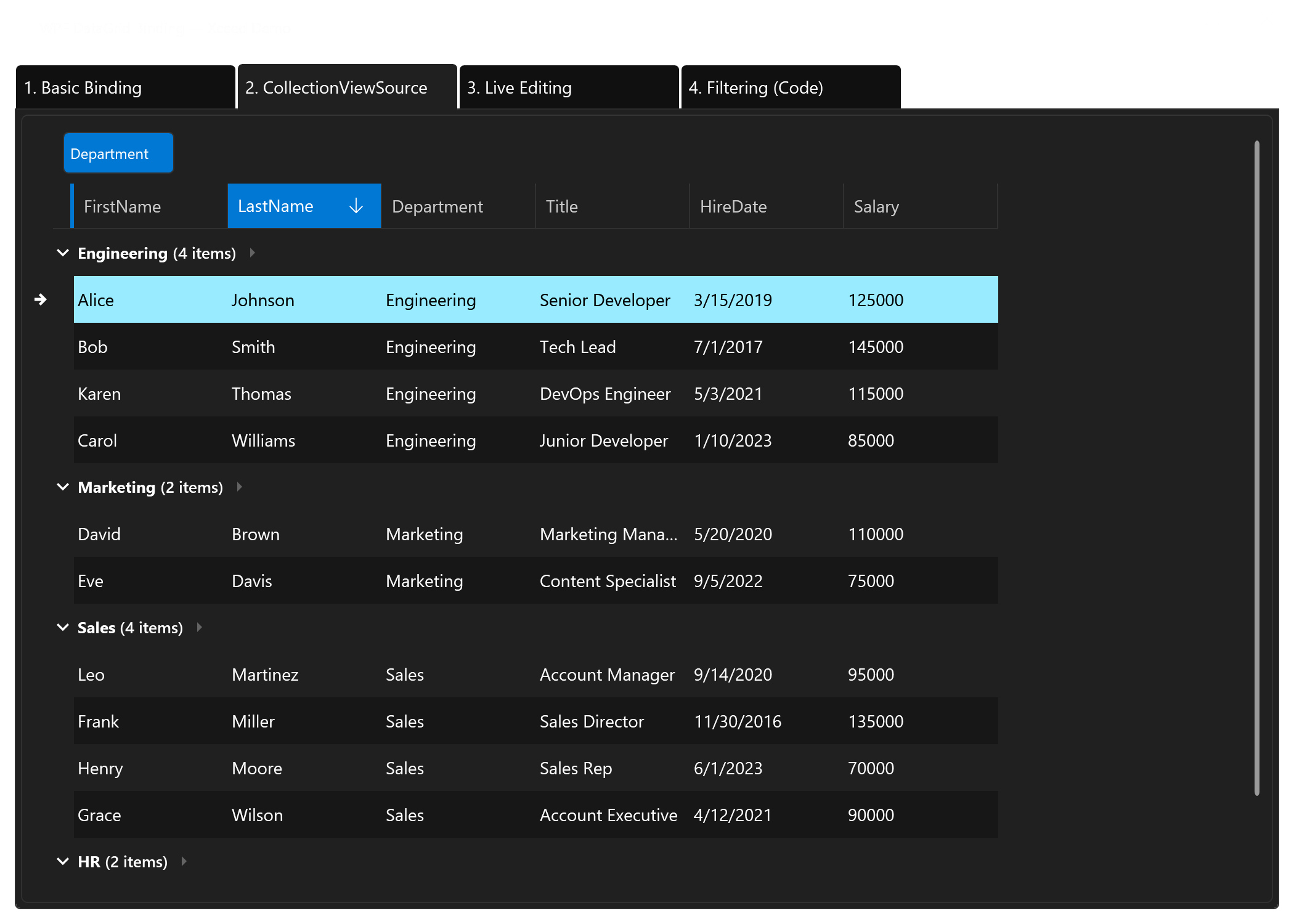
Three lines of XAML give you grouped rows with collapsible headers, sorted alphabetically within each group. In contrast, the built-in WPF DataGrid requires a GroupStyle template, an expander control, and manual styling to achieve the same result. DataGridGroupDescription also supports multi-level grouping — just add more descriptions to the collection.
Pattern 3: Live Editing with ObservableCollection
Real applications need users to add, edit, and remove rows while the grid stays in sync. Since ObservableCollection raises CollectionChanged events, the WPF DataGrid updates automatically when items come and go. Here’s the wpf datagrid binding pattern that supports full CRUD.
The Code-Behind
public ObservableCollection<Employee> Employees { get; }

public MainWindow()
{
    InitializeComponent();
    DataContext = this;
    Employees = SampleData.GetEmployees();
}

private void AddEmployee_Click(object sender, RoutedEventArgs e)
{
    Employees.Add(new Employee
    {
        FirstName = "New",
        LastName = "Employee",
        Department = "Engineering",
        Title = "Developer",
        HireDate = DateTime.Today,
        Salary = 80000m
    });
}

private void RemoveEmployee_Click(object sender, RoutedEventArgs e)
{
    if (editableGrid.SelectedItem is Employee emp)
        Employees.Remove(emp);
}
The XAML
<DockPanel>
    <StackPanel DockPanel.Dock="Top" Orientation="Horizontal" Margin="8">
        <Button Content="Add Employee" Click="AddEmployee_Click"
                Padding="12,6" Margin="0,0,8,0" />
        <Button Content="Remove Selected" Click="RemoveEmployee_Click"
                Padding="12,6" />
    </StackPanel>
    <xcdg:DataGridControl x:Name="editableGrid"
                          ItemsSource="{Binding Employees}">
        <xcdg:DataGridControl.View>
            <xcdg:TableflowView IsAlternatingRowStyleEnabled="True">
                <xcdg:TableflowView.Theme>
                    <tp5:Windows10Theme />
                </xcdg:TableflowView.Theme>
            </xcdg:TableflowView>
        </xcdg:DataGridControl.View>
    </xcdg:DataGridControl>
</DockPanel>
Click “Add Employee” and a new row appears at the bottom. Select a row and click “Remove Selected” — the row disappears instantly. You can also double-click any cell to edit it in place. Because Employee implements INotifyPropertyChanged, every cell edit propagates to the underlying object immediately. This is the same wpf datagrid binding pattern you’d use in an MVVM architecture — just move the collection and commands into a view model.
Pattern 4: Filter Data with DataGridCollectionView in Code
Filtering is where the built-in WPF DataGrid forces you into awkward territory. You either use CollectionViewSource.Filter with a predicate callback, or you rebuild the entire collection. Xceed’s DataGridCollectionView offers a cleaner approach through FilterCriterion objects.
The Setup
private DataGridCollectionView? _filteredView;

private void SetupFilteredGrid()
{
    _filteredView = new DataGridCollectionView(Employees);
    filteredGrid.ItemsSource = _filteredView;
}
Applying a Filter
private void FilterCombo_Changed(object sender, SelectionChangedEventArgs e)
{
    if (_filteredView == null)
        return;

    string dept = /* selected department from ComboBox */;
    _filteredView.FilterCriteriaMode = FilterCriteriaMode.And;
    _filteredView.ItemProperties["Department"].FilterCriterion = null;

    if (dept != "All")
    {
        _filteredView.ItemProperties["Department"].FilterCriterion =
            new EqualToFilterCriterion(dept);
    }
}
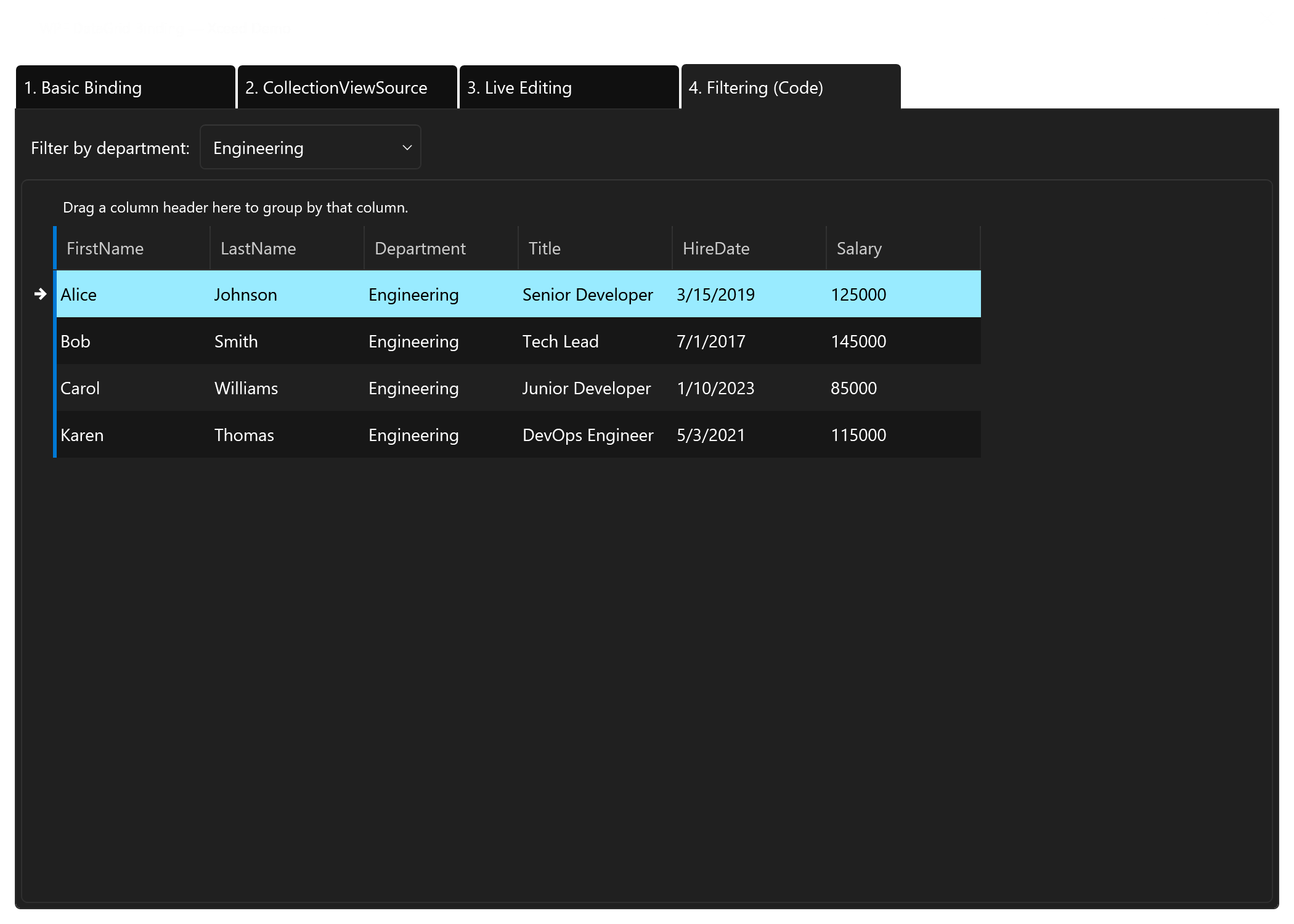
Set the criterion to null and all rows reappear. Set it to a specific value and the grid instantly filters. You can combine multiple FilterCriterion objects across different columns — use FilterCriteriaMode.And to require all criteria match, or FilterCriteriaMode.Or for any-match logic. The WPF DataGrid built into .NET has nothing comparable without writing custom predicate logic.
EqualToFilterCriterion is one of several built-in options. Xceed also provides GreaterThanFilterCriterion, ContainsFilterCriterion, and others in the Xceed.Wpf.DataGrid.FilterCriteria namespace. For complex requirements, you can build composite filters with AndFilterCriterion and OrFilterCriterion.
Which Pattern Should You Use?
The right choice depends on your requirements. However, most production apps combine several of these patterns.
| Scenario | Pattern | Why |
|---|---|---|
| Simple read-only list | Pattern 1 — ObservableCollection | Minimal setup, auto-generated columns |
| Grouped reports | Pattern 2 — DataGridCollectionViewSource | Declarative grouping and sorting in XAML |
| CRUD screens | Pattern 3 — Live editing | Two-way binding with add/remove support |
| Search or filter UI | Pattern 4 — FilterCriterion | Type-safe filtering without custom predicates |
| All of the above | Combine patterns 2 + 3 + 4 | DataGridCollectionView supports all three simultaneously |
For a quick prototype, Pattern 1 gets you running in under a minute — it’s the simplest wpf datagrid example to copy and adapt. For anything destined for production, start with DataGridCollectionView (Pattern 4) because you can always layer grouping and sorting on top later.
Why Not Just Use the Built-In DataGrid?
The standard WPF DataGrid that ships with .NET works for basic tables. Nevertheless, it hasn’t received a feature update since 2010. Here’s where Xceed pulls ahead specifically for binding scenarios:
- DataGridCollectionView replaces the clunky ICollectionView pattern with purpose-built grouping, sorting, and filtering
- Container recycling keeps memory flat even when binding collections with millions of rows
- Smooth scrolling through TableflowView makes large bound datasets feel responsive
- 18 built-in themes eliminate the need for custom DataGrid styling
- Master-detail binding works through DataRelation objects — no manual templates required
The built-in DataGrid can technically do grouping and filtering, but you’ll write significantly more boilerplate code. Xceed wraps these patterns into a cohesive API that works consistently across all four patterns shown above.
Get the Demo Project
The complete XceedDataGridBindingDemo project includes all four patterns in a tabbed interface. Clone the repo, restore NuGet packages, and run it on .NET 10:
<PackageReference Include="Xceed.Products.Wpf.DataGrid.Full"
                  Version="7.3.26166.7869" />
Every XAML and C# snippet in this article comes directly from that demo. Insert your license key in App.xaml.cs before running — or use the 45-day trial with no key at all.
Try Xceed DataGrid for WPF
Bind, group, filter, and edit millions of rows with smooth scrolling and 18 built-in themes. One NuGet package, zero custom plumbing.
Download Free Trial View on NuGetIs the WPF DataGrid still used in 2026?
Yes — WPF ships with every .NET release including .NET 10, and Microsoft uses Xceed’s WPF DataGrid in Visual Studio itself. WPF remains the standard for data-heavy desktop apps on Windows, especially in finance, healthcare, and manufacturing.
What is the difference between DataGrid and DataGridControl in WPF?
DataGrid is the built-in control from Microsoft, included in the System.Windows.Controls namespace. DataGridControl is Xceed’s replacement, offering TableflowView, built-in grouping, smooth scrolling, and 18 themes. Both support wpf datagrid binding to collections, but DataGridControl provides a richer API for production use.
How do I bind a WPF DataGrid to a list of objects?
Set the ItemsSource property to any IEnumerable, ideally an ObservableCollection. For the best experience, implement INotifyPropertyChanged on your model class so cell edits update automatically. This wpf datagrid example pattern works identically with both the built-in DataGrid and Xceed’s DataGridControl.
Can I group and filter a WPF DataGrid without code-behind?
With Xceed, yes. Use DataGridCollectionViewSource in your XAML resources and add DataGridGroupDescription entries for grouping. Sorting works through standard SortDescription objects. Filtering requires a small amount of code-behind or view model logic, since filter criteria depend on runtime values.
How do I handle millions of rows in a WPF DataGrid?
The built-in WPF DataGrid struggles beyond 100,000 rows due to limited virtualization. Xceed DataGrid provides UI virtualization with container recycling, asynchronous data virtualization, and column virtualization — handling millions of rows without memory spikes. Bind your large dataset normally and the grid manages paging internally.
Does Xceed DataGrid work with MVVM?
Absolutely. Expose your ObservableCollection and DataGridCollectionView from a view model, bind ItemsSource in XAML, and use ICommand for add/remove operations. Every wpf datagrid binding pattern shown in this article translates directly to MVVM — just replace the code-behind event handlers with commands.